Desktop App
The OOD Desktop App allows you to run programs that require graphical user interfaces (GUIs) on Savio.
Intended Usage
When possible, you should carry out your computation via the traditional command line plus SLURM functionality. OOD Desktop is intended for use for programs that require GUIs. Furthermore, if you need to use Jupyter notebooks, RStudio, VS Code, or the MATLAB GUI, we provide specialized interactive apps that you should use instead of the OOD Desktop App.
Starting the Desktop App
- Connect to Open OnDemand
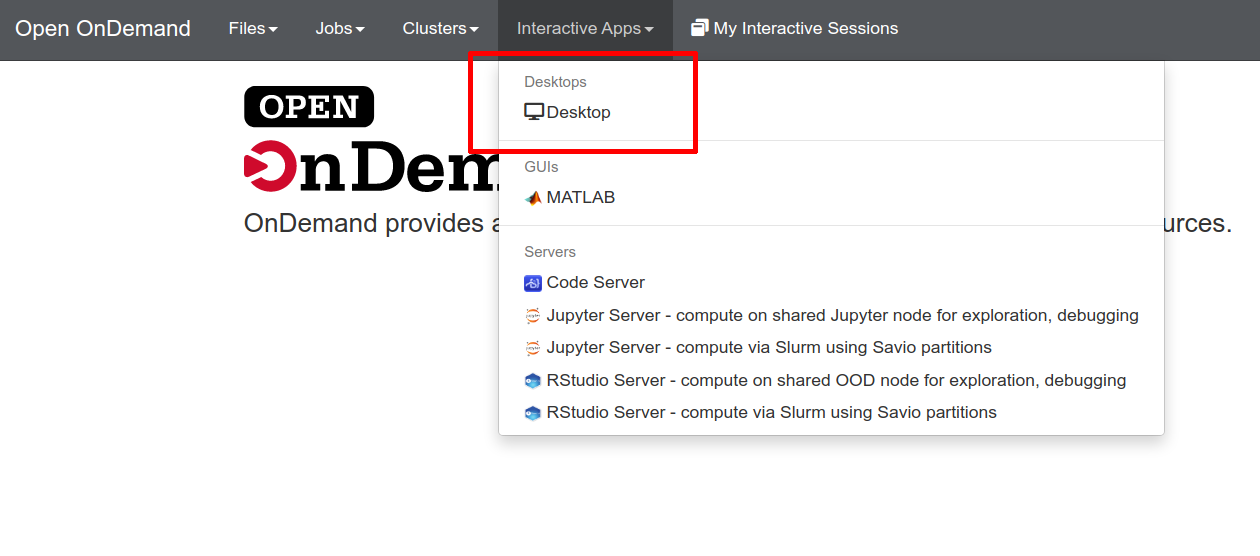
- Just after logging in with your, the initial OnDemand screen presents a welcome screen. Click the "Interactive Apps" pulldown and choose the "Desktop", either using a shared node (for exploration and debugging use) or computing via Slurm for computationally-intensive work.
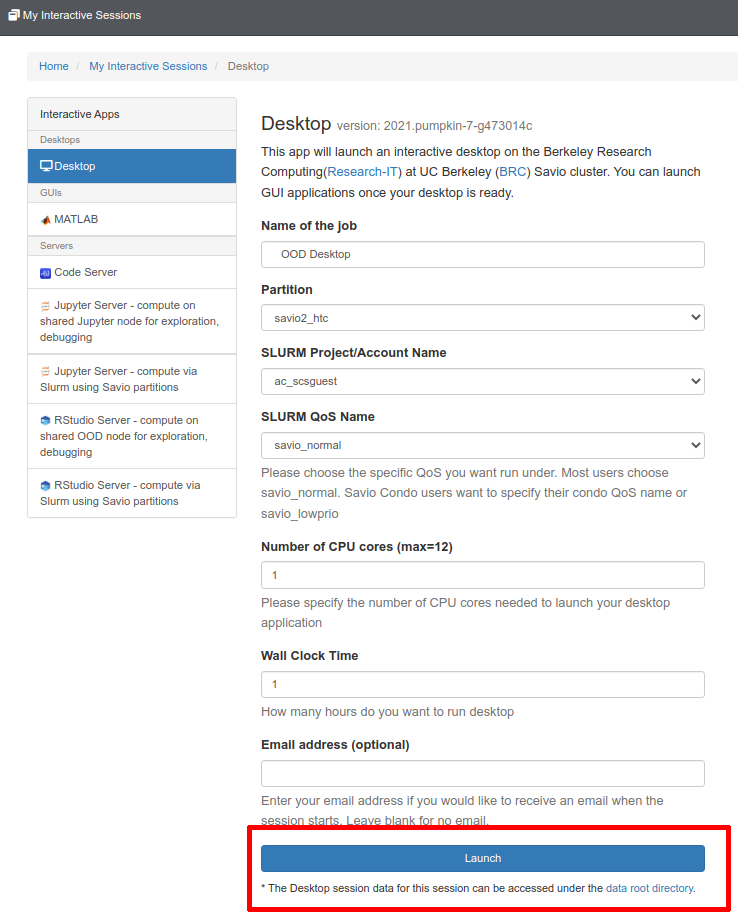
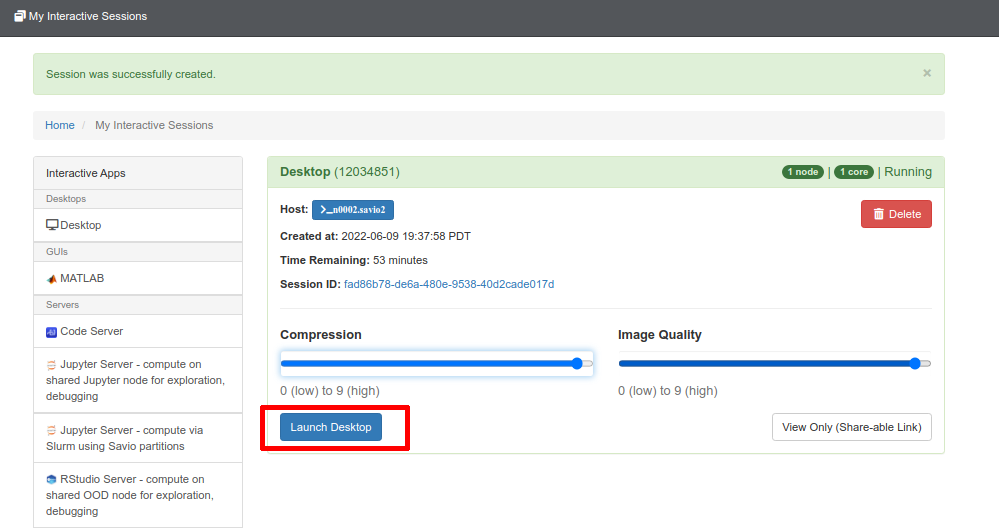
3.Fill out the form presented to you and then press "Launch". After a moment, the Desktop session will be initialized and allow you to specify the image compression and quality options. If you are unhappy with the default values, you can relaunch the session from this page with different choices. Then, press "Launch Desktop" and the Desktop will open in a new tab.
Interacting with Files
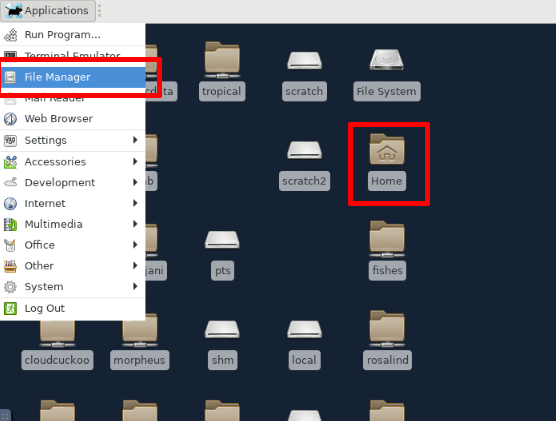
Your Desktop session is running directly on Savio, and can interact with your files either through the command line as usual or through the file manager.
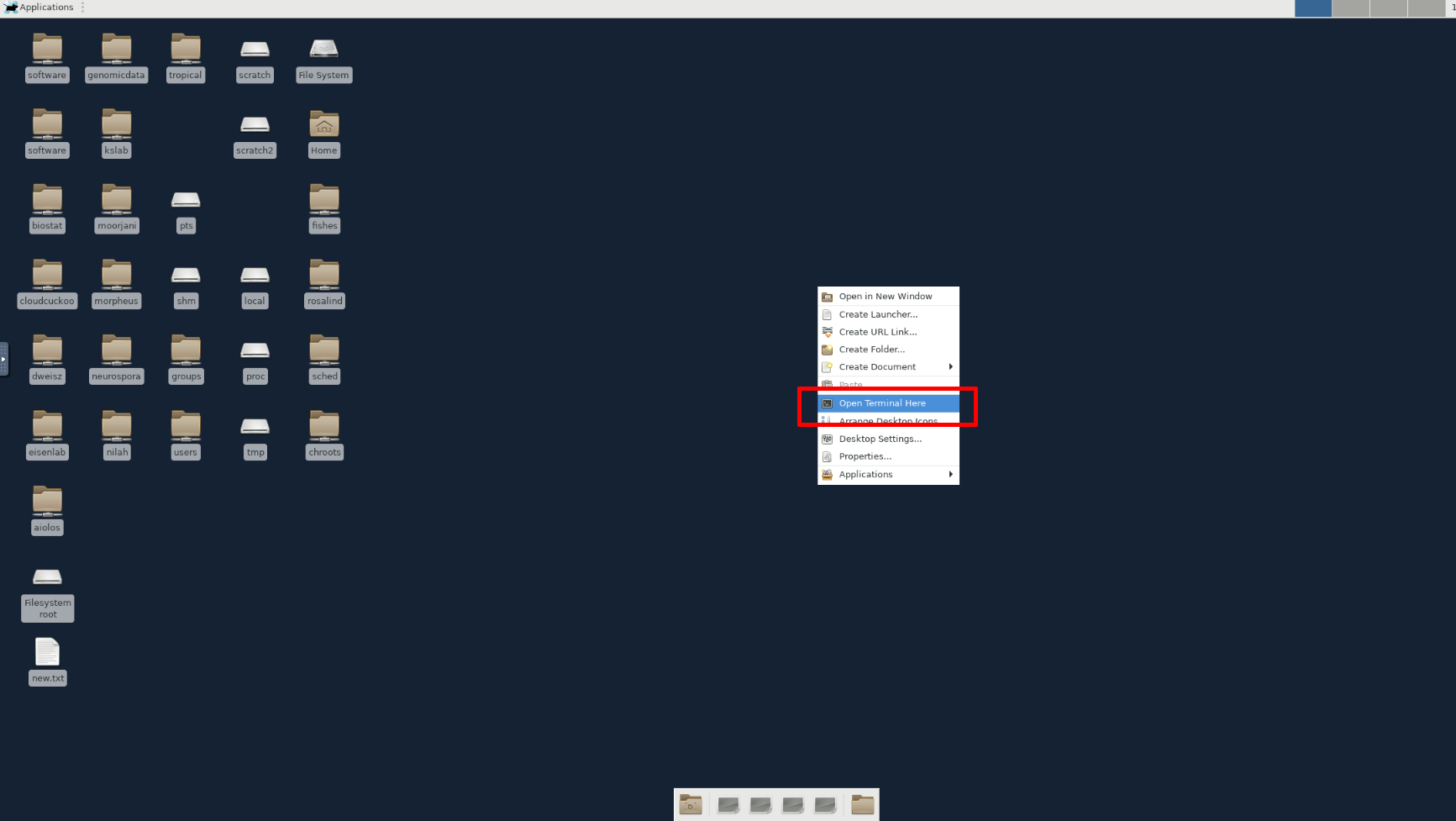
To open a command line terminal, right click anywhere on the Desktop and select "Open Terminal Here".